Last year I needed to merge a stack of signed visa forms into one PDF at eleven at night, so I did what everyone does and pasted them into the first free PDF website a search gave me, clicked merge, downloaded the result and went to bed. Around two in the morning I woke up with the thought that follows you after doing something careless, which is that my passport scan and my bank statements and my employment contract had just passed through a server belonging to a company whose name I could not remember by morning. I have no idea what their privacy policy says because I never read it, and neither do you, and those sites process millions of documents a day from people who are in exactly the hurry I was.
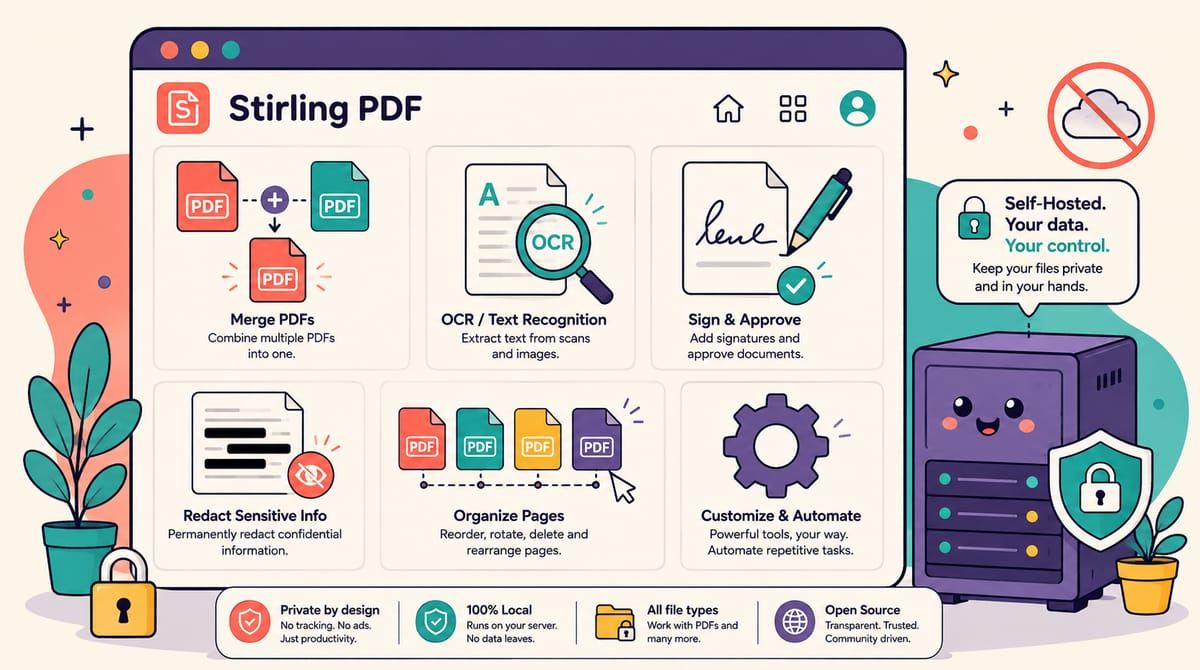
The free PDF websites make money the same way every free tool does, which is to say the document is the payment, and the paid path is Adobe Acrobat Pro at a monthly price bigger than what my entire server costs to run. Between those two extremes sits an open-source project called Stirling PDF that gives you every tool those websites charge for, merge and split and compress and OCR and signing and redaction and format conversion, running in a browser tab on your own hardware, where the only machine that ever sees your tax returns is the one humming under your desk. It has collected over ninety thousand stars on GitHub and the company behind it funds development with an enterprise tier while the community edition stays MIT licensed, a model I am happy to support because the thing I actually need costs nothing.
The tool list is borderline absurd when you see it laid out. There are the things you expect, merging PDFs, splitting out page ranges, rotating, compressing a forty megabyte scan down to something an email system will accept, and then there is the deeper layer that usually costs money, OCR that turns a scanned image into searchable text in dozens of languages, redaction that strips the underlying text out where the cheap tricks leave a black box you can copy-paste around, digital signing, form filling, watermarking, page numbers, comparing two PDFs line by line, converting to and from images and Office formats. Version two added a stateful workspace where you upload once and chain tools together with full undo history, so a chore that used to be six round trips through six websites becomes one session in one tab.
Automation is where this stops being a convenience and starts being infrastructure. Every tool in the UI has a REST API behind it, the interface lets you build no-code pipelines that run a sequence of operations on whatever lands in a watched folder, and there is even an MCP server so an AI assistant can drive your PDF operations directly. I have a pipeline that watches a folder, OCRs whatever appears in it and compresses the result, which means every document my scanner produces is searchable before I have walked back to my desk. If you run n8n this slots into it the same way my URL shortener does, one HTTP request per job.
The compose file is one service with no database and no sidecars, the kind of setup you can have running before your tea gets cold.
services:
  stirling-pdf:
    image: docker.stirlingpdf.com/stirlingtools/stirling-pdf:latest
    container_name: stirling-pdf
    restart: unless-stopped
    ports:
      - "8080:8080"
    volumes:
      - ./stirling-data/configs:/configs
      - ./stirling-data/logs:/logs
      - ./stirling-data/tessdata:/usr/share/tessdata
      - ./stirling-data/pipeline:/pipeline
The configs volume holds your settings and the small internal database, logs and pipeline are what they sound like, and tessdata is where the OCR language files live so they survive container updates. I use bind mounts here instead of named volumes because it makes the whole thing one folder you can point your backup script at, which matters more than usual for this service since the pipeline definitions you build are real work you do not want to redo. Port 8080 gives you the web interface, and putting it behind Caddy with a domain name takes the same ten minutes it takes for every other service in the stack.
Here is the thing every older guide on the internet gets wrong now, because version two flipped a default and broke a thousand tutorials including my own notes. Login is enabled out of the box and a fresh container creates an admin account with the username admin and the password stirling, so change that password the first time you log in or you have effectively published a PDF editor to anyone who can reach your port. If the instance lives entirely on your LAN and you want the old no-login experience, set SECURITY_ENABLELOGIN to false explicitly and the app behaves the way the old guides describe. The DOCKER_ENABLE_SECURITY variable that every tutorial still quotes does nothing in version two, and I lost twenty minutes to that exact rename before I read the changelog like a person who learns things the easy way.
Pick your image tag before you pull, because there are three. The standard latest tag covers almost everyone, latest-fat adds extra fonts and conversion formats at the cost of a much bigger download, and latest-ultra-lite strips it down for a Raspberry Pi, which matters because this is one of the few services in my stack I would genuinely run on a Pi. One more OCR detail worth knowing, the container ships with English language data and if you scan documents in other languages you drop the matching traineddata file into the tessdata volume and restart, a five minute job that turns OCR from English-only into whatever you actually read.
Stirling is open-core these days and I want to be straight about that, the community edition is MIT licensed and complete for personal use while things like SAML single sign-on and audit logging live in the paid server tier, a fair bargain for software this good and worth knowing before you plan a hundred-person deployment around it. For the rest of us the math is simple, Adobe charges a monthly fee forever and the free websites take payment in documents, while a container on hardware you own takes nothing from anybody. The visa forms from that night took ninety seconds to merge the last time I needed them, in a tab, on my server, and then the folder was empty and nobody but me had seen them.
If you would rather your paperwork never touch someone else’s server, subscribe to the newsletter.