Docker Deep Dive: Networks, Volumes, and Compose Tricks I Wish I Knew Sooner
troysk
May 17, 2026 · 4 min read
I started using Docker the way most people do, which is to say I copied a compose file from the internet, changed a few values, ran docker compose up, and hoped it worked. And it did work, mostly, until I ran into a situation where one container could not talk to another or a database lost all its data after an update or a container kept restarting with no obvious reason why. Docker is simple until it is not, and when it is not you need to understand how it actually works under the hood.
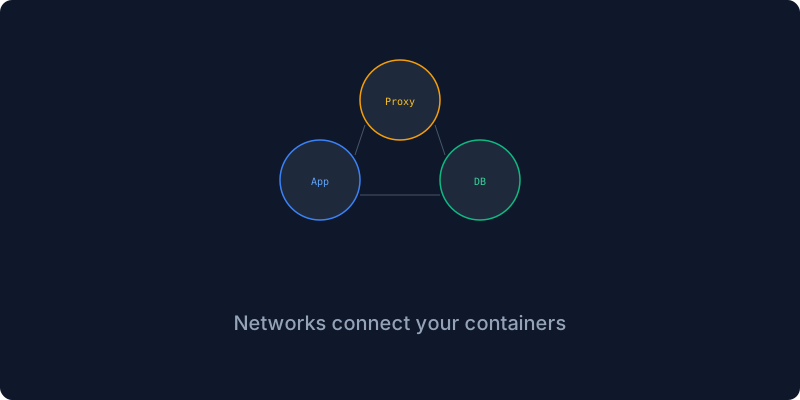
When you run docker compose up, Docker creates a default network for your stack and containers in the same stack can find each other by service name. This works because Docker has a built-in DNS resolver that translates service names to container IPs, so when your application references a host called postgres it resolves to the Postgres container automatically. The problem comes when you have two separate compose files because their containers are on different networks and they cannot talk to each other without explicit configuration.
To connect two stacks you need to create a shared network and attach both stacks to it. You declare an external network in your compose file, create it once with docker network create, and then any container attached to that network can communicate with any other. This is how you run a reverse proxy in one compose file and your actual services in another, keeping them logically separated while allowing the proxy to route traffic to your applications.
For most services I use the default bridge network because it provides isolation and DNS resolution out of the box. Host mode is occasionally useful for services that need to see the host network interface, like network monitoring tools, but I use it maybe one percent of the time because the tradeoff is that you lose the ability to run two containers on the same port and you reduce isolation between the container and the host.
Volumes are where I made my most expensive mistake. I ran a database container with important data, updated the compose file, ran docker compose down followed by docker compose up, and the database started fresh and empty because I had used an anonymous volume instead of a named one. Anonymous volumes are created when you specify a container path without a named volume or bind mount, and they are deleted when you run docker compose down unless you are careful. Named volumes survive the down command, are portable across environments, and are easier to back up.
Always use named volumes for databases and use bind mounts for configuration files that need to be edited on the host. Do not use bind mounts for databases because the performance is worse and the permission handling is painful, a lesson I learned when my Postgres container refused to start because of file permissions on a bind-mounted data directory.
services:
  postgres:
    image: postgres:16
    volumes:
      - pgdata:/var/lib/postgresql/data

volumes:
  pgdata:
Health checks are another thing I did not use until after a production incident taught me their value. By default Docker only knows if a container’s main process is running, so if that process is running but the service is broken Docker thinks everything is fine. A health check tells Docker to actually test the service by running a command inside the container, and if the test fails enough times the container is marked unhealthy. Other containers can wait for the healthy status before starting, which prevents the classic race condition where your application starts before the database is ready to accept connections.
services:
  postgres:
    image: postgres:16
    healthcheck:
      test: ["CMD-SHELL", "pg_isready -U postgres"]
      interval: 10s
      timeout: 5s
      retries: 5
Restart policies seem straightforward but have a subtlety that catches people. The always policy restarts the container even if you manually stop it, which is annoying when you are trying to do maintenance. The unless-stopped policy restarts automatically but respects manual stops, so if you stop a container for maintenance it stays down until you explicitly start it again. I use unless-stopped for most services and on-failure for batch jobs that should only retry if they crash rather than if they complete successfully.
Resource limits are the last thing I will mention because they saved my server from a memory leak that was crashing everything every three days. A single container with a memory leak can bring down your entire machine because Docker does not limit resources by default. Adding CPU and memory limits ensures that one misbehaving container gets killed by the kernel instead of starving every other container on the system.
services:
  app:
    image: my-app
    deploy:
      resources:
        limits:
          cpus: "0.5"
          memory: "256M"
Docker is deep and you do not need to know everything on day one, but understanding networks and volumes and health checks and resource limits is what separates copying compose files from the internet and building infrastructure that actually stays up. Start with named volumes for databases, add health checks to critical services, set resource limits before you need them, and your server will thank you.
If you have thoughts on this do email me or subscribe to the newsletter for more Docker deep dives.
Get New Articles
Weekly guides on self-hosting, privacy, and infrastructure.
No spam. Unsubscribe anytime.