Docker Compose for Beginners: Run Everything with One Command
troysk
May 8, 2026 · 5 min read
I spent the first year of my self-hosting journey installing things manually. I would SSH into my server, follow a tutorial step by step, install dependencies one at a time, configure each service through its web UI, and then forget exactly what I did when I needed to replicate the setup on another machine. Every deployment was a unique snowflake and every migration was a nightmare of remembering which steps I had taken and which config files I had edited. Docker Compose changed all of that for me, and it is the single most important tool in any self-hoster’s arsenal.
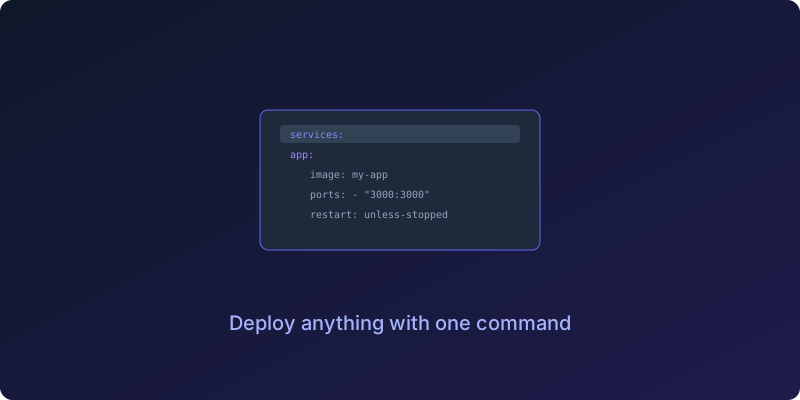
Docker runs individual containers and Docker Compose runs multiple containers together, handling networking and volumes and environment variables so you can define an entire application stack in a single YAML file and deploy it with one command. No more hunting through install guides or forgetting steps or wondering why something worked on your laptop but not on your server. Just write the file, run docker compose up -d, and everything comes up the way you designed it.
Let me walk through the anatomy of a compose file because once you understand the structure you can read any compose file on the internet and adapt it for your own use. Every compose file starts with a services block, and inside that block you define each container that makes up your application. A simple web app might have an app service that runs your code, a db service that runs Postgres, and a redis service for caching. Each service specifies its Docker image, the ports it exposes, any volumes it needs for persistent data, and any environment variables it requires.
services:
  app:
    image: my-app:latest
    ports:
      - "3000:3000"
    environment:
      - DB_HOST=db
    depends_on:
      - db

  db:
    image: postgres:16
    volumes:
      - pgdata:/var/lib/postgresql/data
    environment:
      POSTGRES_PASSWORD: changeme

volumes:
  pgdata:
The depends_on field is important because it tells Docker to start the database before the application, but it does not wait for the database to be ready to accept connections. For that you need healthchecks, which I will cover later. The volumes block at the bottom declares named volumes that persist data even when containers are recreated, and this is how you keep your database safe across updates and redeploys.
One of the most useful patterns I have adopted is using environment files to keep secrets out of the compose file itself. Create a dot-env file alongside your compose file with your passwords and domains and other sensitive values, then reference them in the compose file using the dollar-brace syntax. This means you can commit your compose file to version control without exposing your credentials, and you can have different dot-env files for different environments.
environment:
  - POSTGRES_PASSWORD=${DB_PASSWORD}
For databases I always use named volumes and never anonymous volumes or bind mounts. I learned this lesson the hard way when I updated a compose file and ran docker compose down followed by docker compose up and found my database had started fresh with all my data gone. Named volumes survive the down command, so your data stays even when containers are rebuilt. Bind mounts have their place for configuration files where you want to edit on the host and have changes reflected in the container, but they are not suitable for databases because the performance is worse and the permission handling is painful.
services:
  postgres:
    image: postgres:16-alpine
    volumes:
      - pgdata:/var/lib/postgresql/data

volumes:
  pgdata:
Here is a real example that I run on my own server, a complete media server stack with Jellyfin for streaming and Sonarr and Radarr for automated downloads. One file, one command, and you have a full media server that would have taken me hours to set up manually in the old days.
services:
  jellyfin:
    image: jellyfin/jellyfin:latest
    ports:
      - "8096:8096"
    volumes:
      - jellyfin_config:/config
      - /path/to/media:/media
    restart: unless-stopped

  sonarr:
    image: linuxserver/sonarr:latest
    ports:
      - "8989:8989"
    volumes:
      - sonarr_data:/config
      - /path/to/media:/media
    restart: unless-stopped

  radarr:
    image: linuxserver/radarr:latest
    ports:
      - "7878:7878"
    volumes:
      - radarr_data:/config
      - /path/to/media:/media
    restart: unless-stopped

volumes:
  jellyfin_config:
  sonarr_data:
  radarr_data:
A few things I have learned that make the difference between a setup that runs for years and one that breaks at the worst possible moment. Pin your Docker images to specific versions instead of using the latest tag, because latest changes without warning and an update that works on Tuesday might break your stack on Wednesday. Use custom networks to keep services isolated from each other so a compromise in one container does not automatically give access to all the others. Add health checks to your databases so that Docker knows when they are actually ready to accept connections rather than just running. And back up your volumes because the day will come when you need to restore from backup.
The beauty of Docker Compose is that your entire infrastructure becomes reproducible. Lose your server, clone your repo, run docker compose up, and you are back in business. The first time I had to do a full restore from backup and it took fifteen minutes instead of a week of rebuilding everything manually, I understood why people say infrastructure as code is not optional.
Once you have mastered the basics, explore setting up a reverse proxy with automatic SSL and using Watchtower for automatic updates of your containers.
If you like what you read do subscribe to the newsletter and I will send you more guides like this one.
Get New Articles
Weekly guides on self-hosting, privacy, and infrastructure.
No spam. Unsubscribe anytime.